The Best Way to Scan Old Photos, With a Scanner or a Phone
 CodeFormer.io teamPublished
 The best way to scan old photos is a flatbed scanner at 600 DPI, in color, saved as an untouched original scan. No scanner? A phone held flat above the print in soft daylight is the next best choice.
Here's how to digitize old photos step by step, using advice from the Library of Congress, the National Archives (NARA), the Minnesota Historical Society and FADGI, the digitizing guidelines written by U.S. federal agencies.
The short version
- 600 DPI for photos you'll restore or enlarge, 300 DPI for a same-size copy.
- Color and TIFF, even for black-and-white prints.
- On a phone: flash off, window light without direct sun, and the phone flat above the print.
- Afterward: put a date and names in each file name, keep 3 copies with 1 away from home, and keep the prints.
Scanner or phone: which is the best way to scan old photos?
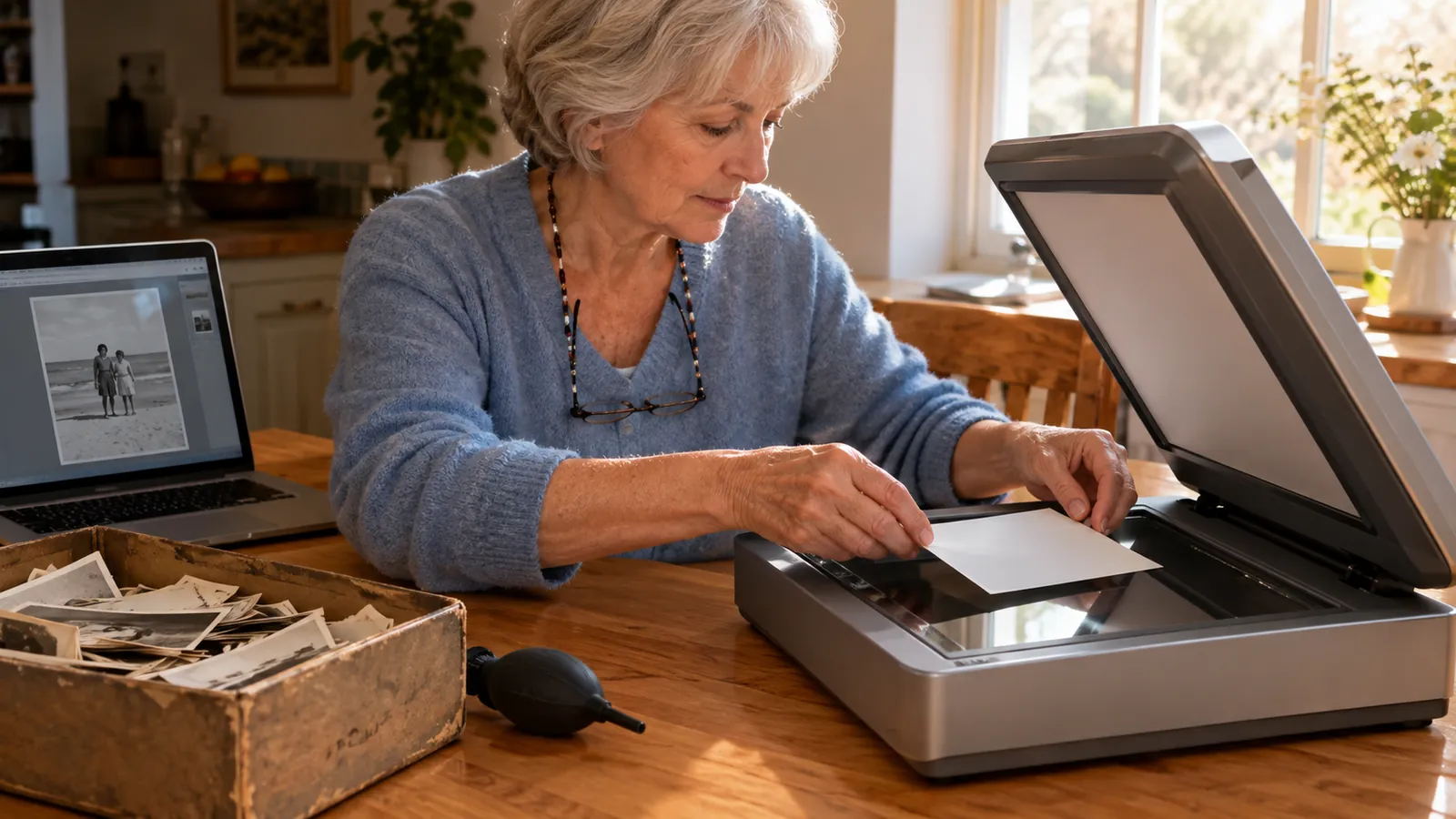
A flatbed catches more detail, in even, flat light. The Minnesota Historical Society says phone apps fall short of a scanner in nearly every way except convenience.
A phone works when a cousin lets you copy her album in one visit. It's also gentler when taking a photo out of an album or frame could damage it, FamilySearch notes. Either way, you end up with files you can share and restore.
Thinking of buying a scanner? The Minnesota Historical Society recommends a flatbed, not an all-in-one printer-copier or a sheet-fed document scanner.
How to scan old photos on a flatbed scanner
Before you do a whole box, make one test scan and check it at full size, as FamilySearch suggests.
How to scan old photos for the best resolution
Use 600 DPI for precious photos, small prints and anything you'll restore or enlarge. 300 DPI copies a print at its original size, which the Library of Congress suggests for everyday 4 × 6 and 5 × 7 prints. 600 is also the top, four-star level for prints in FADGI.
Your scanner may call the setting DPI, PPI or resolution. Here they mean the same thing.
| Print size | Same-size copy | To enlarge | Pixels at 600 DPI |
|---|---|---|---|
| Square snapshot or wallet, 3.5 × 3.5 in | Same-size copy300 DPI | To enlarge600 for a 4 × 6, 960 for an 8 × 10 | Pixels at 600 DPI2,100 × 2,100 |
| 4 × 6 in | Same-size copy300 DPI | To enlarge600 for an 8 × 10 | Pixels at 600 DPI2,400 × 3,600 |
| 5 × 7 in | Same-size copy300 DPI | To enlarge480 for an 8 × 10, 730 for an 11 × 17 | Pixels at 600 DPI3,000 × 4,200 |
| 8 × 10 in | Same-size copy300 DPI | To enlarge600 for up to 16 × 20 | Pixels at 600 DPI4,800 × 6,000 |
Sources: Minnesota Historical Society and Library of Congress. The 8 × 10 row and the pixel column are our math (inches × DPI); divide the pixels by 300 for the largest sharp print.
FADGI says prints need more than 600 only in rare cases with very fine detail.
Three settings that matter
- Color, even for black-and-white prints. You can turn a color file gray later, but not the other way around, the Minnesota Historical Society notes.
- TIFF for the first scan. JPEG throws away detail to save space, the same guide says, and TIFF doesn't. If your scanner only saves JPEG, pick the highest quality.
- Extras off. FADGI doesn't allow dust removal or color fixes on archive files, so save those for a copy.
Clean the glass and handle prints by the edges
Dust on the glass can show up as spots in your scans, Epson warns. Unplug the scanner and wipe the glass with a soft, dry cloth, not tissues or paper towels (Canon). For grease, put a little glass cleaner on the cloth, never on the glass. Skip alcohol and thinner.
Fingerprints can leave permanent stains, so NARA says to wear gloves; the Library of Congress also accepts clean, dry hands. Either way, hold each print by its edges. If you wear gloves, choose snug nitrile ones. You don't need white cotton, and loose gloves make you clumsy.
Use a rubber air bulb to blow off dust. The Library of Congress warns against canned air and says even soft brushes can scratch. And keep the whole print on the glass: NARA says the lid can crease an edge that hangs over.
How to scan photos with iPhone or Android
Your options in October 2026:
- Google PhotoScan app (free, iPhone and Android). You move the phone so a circle passes over four dots, and the app merges several shots to leave the glare out (Google Research). It's still in both app stores, but Google hasn't updated it since 2022 on iPhone and 2023 on Android.
- Notes on iPhone. Tap the attachment button, then Scan Documents (Apple). It's meant for documents, and Apple doesn't give the resolution. Our tip: pick a color filter.
- Photomyne (iPhone and Android). It scans several prints in one shot, plus the backs. The download is free; the full app costs $59.99 a year after a 3-day trial (photomyne.com).
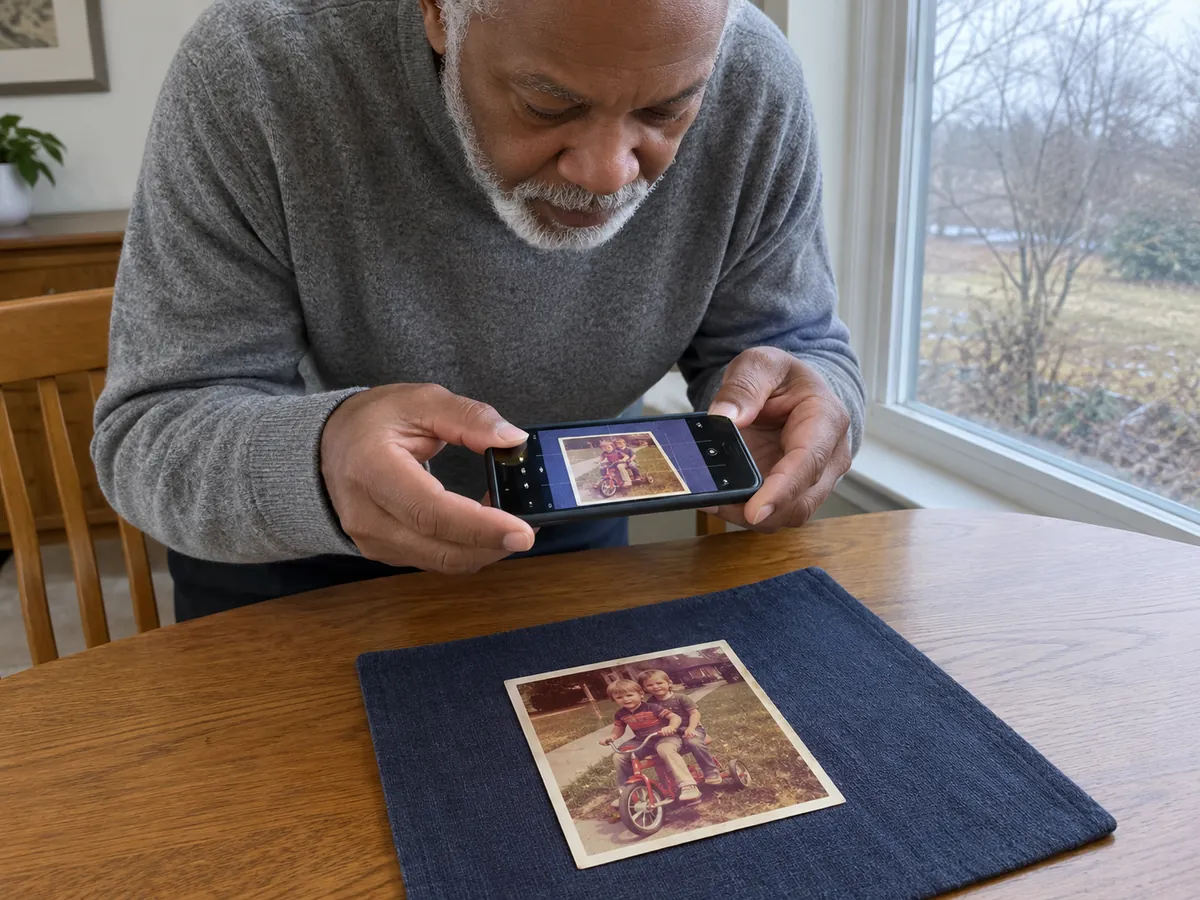
- Your camera app. On iPhone, turn on Grid and Level under Settings > Camera (Apple).
To use the camera app, follow these steps:
- Flash off. A built-in flash tends to wash out the light parts of the photo, says a photography guide hosted by NARA. The one exception is the PhotoScan app, where Google's help page says to turn the flash on.
- Soft daylight. Use a bright overcast day or open shade, not direct sun.
- Hold the phone flat and steady. Google's tips say not to tilt it. A small tripod helps.
- Fill the frame, but don't get so close that the print distorts.
- Pick a plain background that contrasts with the print, not carpet. Google also says to take prints out of plastic sleeves first.
- Glare on glossy prints? Move the lamp or yourself until the shine falls off the faces, and close other curtains so there's one light source.
Sticky albums, curled prints, frames and slides
Magnetic albums (sticky pages under clear plastic):
- Scan or photograph the whole page first, captions included (Gaylord Archival).
- The Library of Congress calls cutting around the photo the safest do-it-yourself method, as long as there's no photo on the other side of the page.
- Can't cut? Work dental floss gently side to side under one corner (Gaylord, Smithsonian). If the glue has dried out, a thin card slid behind the photo may free it.
- If the print bends, tears or its surface lifts, stop and find a photograph conservator.
Once they're free, don't put the photos back in a magnetic album. NARA lists these albums among materials to avoid.
Curled prints. Don't force them flat under glass or the scanner lid, which can crack the image (Library of Congress). Photograph them as they are.
Framed photos. Copy the photo through the glass before you open the frame (Smithsonian). A camera may do better than a scanner here, since it can focus through the glass. If the print is stuck to the glass, don't soak it. Water can ruin many old photos, so that's a job for a conservator.
Slides and negatives need much higher settings and a scanner that handles film. The Minnesota Historical Society gives 1,270 PPI for a 4 × 6 print from 35 mm film and 2,700 for an 8 × 10. FADGI's top level goes to 4,000.
What not to do when scanning old photos
Three mistakes to avoid:
- Throwing the prints away afterward. Digital files have their own risks, NARA warns, so keep the originals too.
- Using tape, sticky notes, glue, paper clips or rubber bands. The Library of Congress says to keep all of them away from prints.
- Skipping the names. A scan doesn't record who's in the photo, and FamilySearch calls that a common mistake. Write down who, what, where and when.
Name your files and back them up
Whatever method you use, finish by naming and backing up every scan.
- Names. The Library of Congress suggests a date written yyyymmdd plus a description, like
19620704_rose-and-walt_lake-picnic.tif. - Backs. If the back has writing on it, scan that too and add
_backto the name. - 3-2-1. NARA and the Minnesota Historical Society both recommend 3 copies on 2 kinds of storage, with 1 away from home. For example: your computer, an external drive and a cloud folder.
- Every 5 to 7 years, copy everything to new storage, as the Library of Congress suggests.
After scanning: repair a copy, keep the original scan
Leave the TIFF as it came off the scanner. To fix fading or scratches, save a high-quality JPEG copy (a PNG of a large 600 DPI scan can go over the 30 MB upload limit) and restore old photos online at CodeFormer.io. Your first photo each day is free, with no account and no watermark.
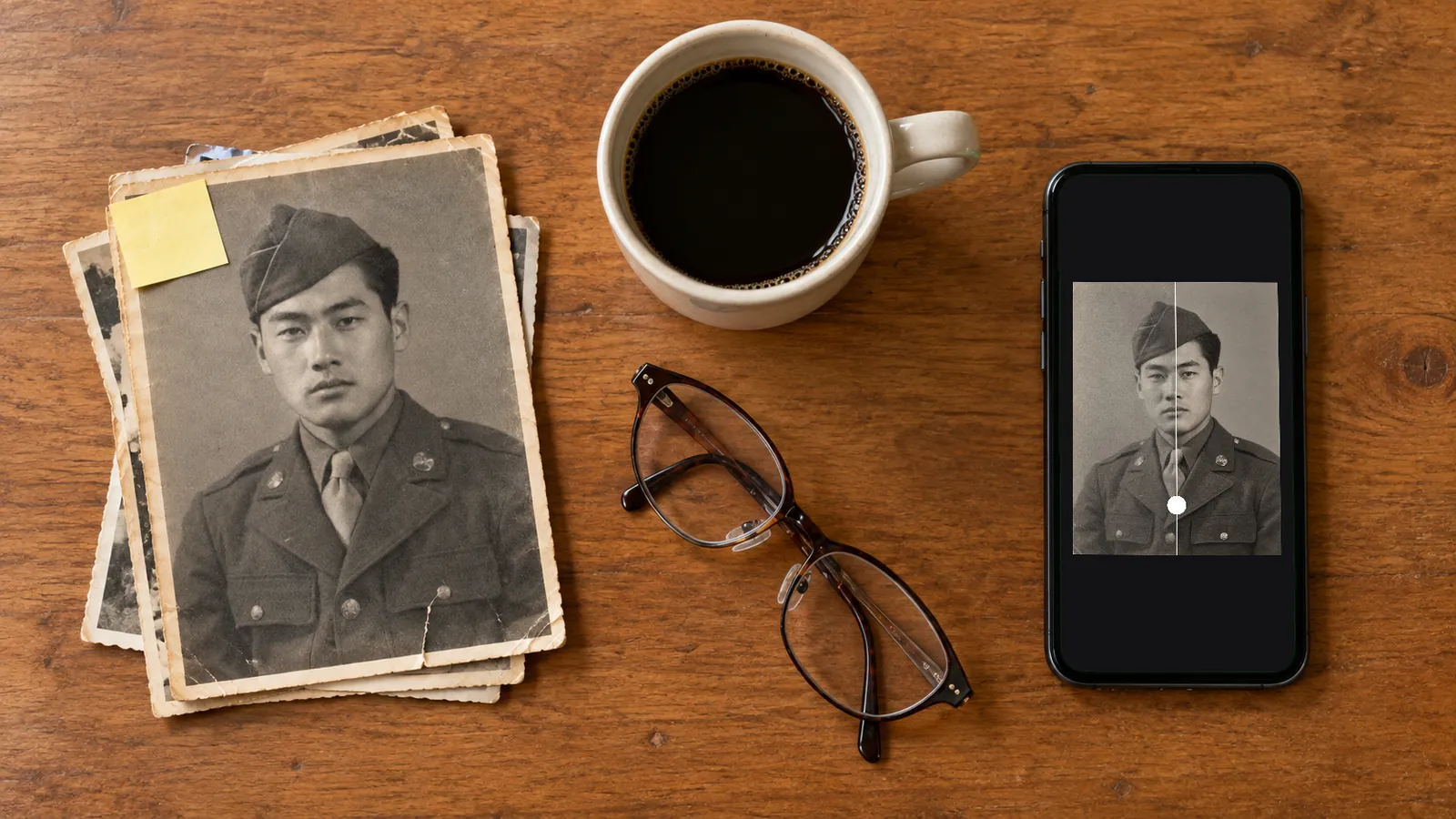
The AI is told to fix blur, grain, scratches, creases, small tears that don't cross a face, fading and color casts, and to leave face shape, expression, glasses and clothes as they are. It can still fill in fine detail, so drag the before/after slider over each face. FamilySearch's advice for any repaired or colorized image: compare it with the original. For a face you know well, choose Closer to the original under More options.
For black-and-white prints, the colorize photo page has Bring back color already selected, and the colors are an educated guess. A soft phone shot? Try unblur a photo.
Name the result something like 19620704_rose-and-walt_lake-picnic_restored.jpg so no one mistakes it for the scan.
The free download is Standard size, about 1,450 × 1,090 pixels for a 4:3 print; 2K and 4K come with any credit pack or plan (see pricing). Photos restored without a paid plan are deleted after 30 days, so keep your scans on your own drives.
When a face is torn away or hidden under a stain, any AI would have to invent a new one. For that, a human restorer working from other photos of the person is the better route; see photo restoration services.

Scanning old photos: common questions
What DPI should I use to scan old photos?
600 DPI if you'll restore or enlarge the photo, 300 DPI for a same-size copy. Slides and 35 mm negatives need far more: roughly 1,300 to 4,000 PPI, with 4,000 at the archive level.
What's the best way to scan old photos if I have hundreds?
Split the pile. For big batches of sturdy, flat prints, FamilySearch suggests a sheet-fed photo scanner. One current model, the Epson FastFoto FF-680W, scans up to 1 photo per second at 300 DPI and was on sale for $529.99 at epson.com on October 20, 2026. Archives are stricter: the Library of Congress and the Minnesota Historical Society keep photos off feeders. Put old, fragile, curled or valuable prints on the flatbed.
If you'd rather pay someone to scan old photos to digital files, mail-in services take whole boxes, but your originals travel. ScanCafe's standard service takes 5 to 6 weeks. If you mail prints yourself, USPS insurance doesn't pay for sentimental value.
How do I clean old photos before scanning?
Mostly with air: a rubber air bulb takes off loose dust. Skip canned air, brushes and any liquid. Hold prints by the edges, and leave stains and stuck-on glue to a conservator.
Does scanning damage old photos?
Not in any of the archive guidance we read; the risks there come from handling. Watch for a lid pressing on a print that hangs over the edge, a curled print forced flat, a fragile print sent through a feeder, and fingerprints.
Does Walgreens or Costco scan old photos?
Walgreens does. Its Home Movie & Print Digitization page lists photos starting at $29.99, takes prints, slides and negatives, and returns the files on USB along with your originals (checked October 20, 2026). It doesn't say how many photos that price covers or at what resolution, so ask first.
Costco closed every in-store photo center on February 14, 2021, CNN reported, keeping only its online photo center. Check costco.com for what it offers now.
How do I scan old photos if I don't have a scanner?
Use your phone and the camera steps above. You don't need to buy anything to digitize photos at home. Before you spend money on a scanner to scan old photos, ask at your library: the Minnesota Historical Society notes that many have one the public can use. In 2023 FamilySearch opened a free Memory Lane center in Salt Lake City with self-feeding photo scanners; a 2026 notice mentions library construction, so check it's open before you go.
What's new on this page
- — Published. Scanning advice and sources checked in October 2026.